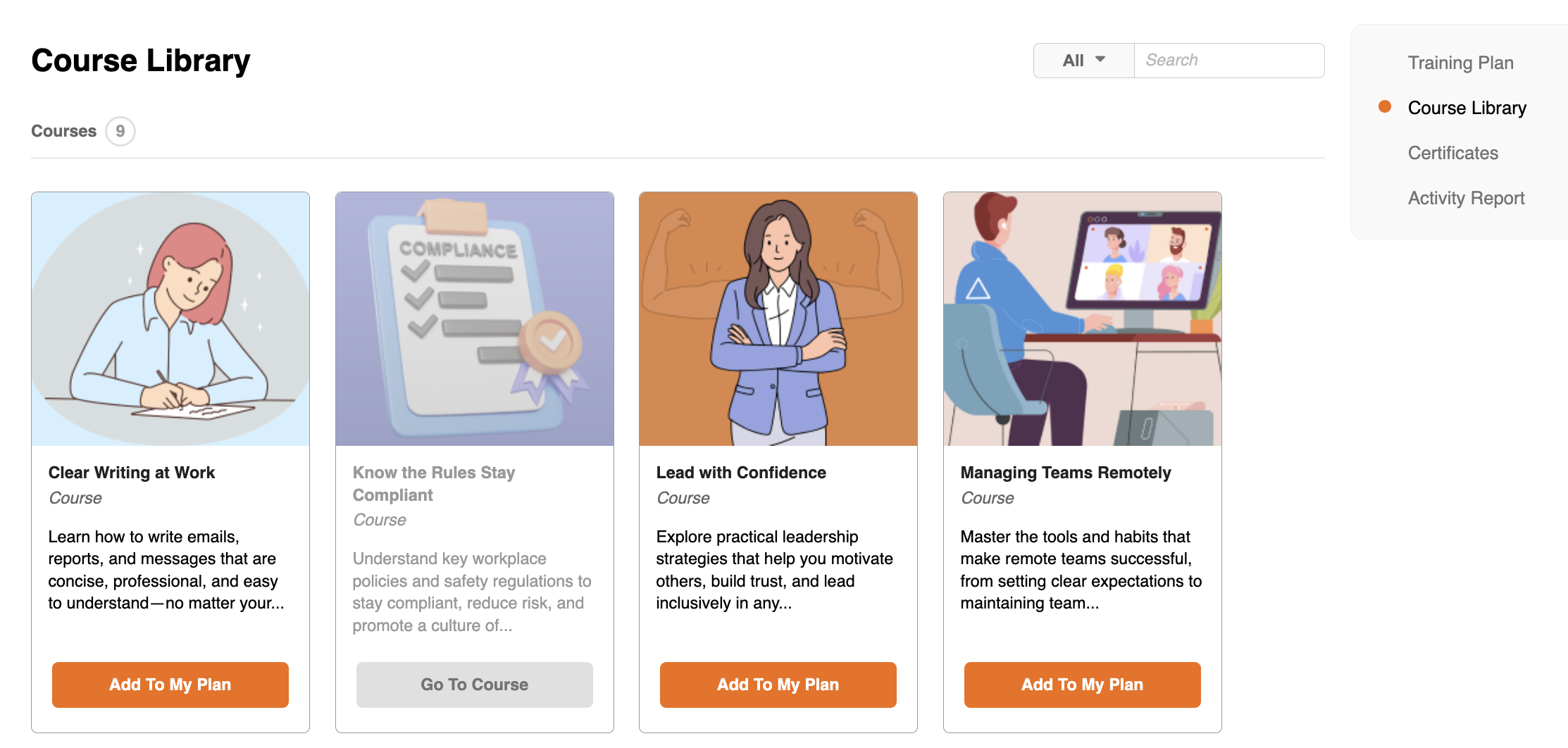
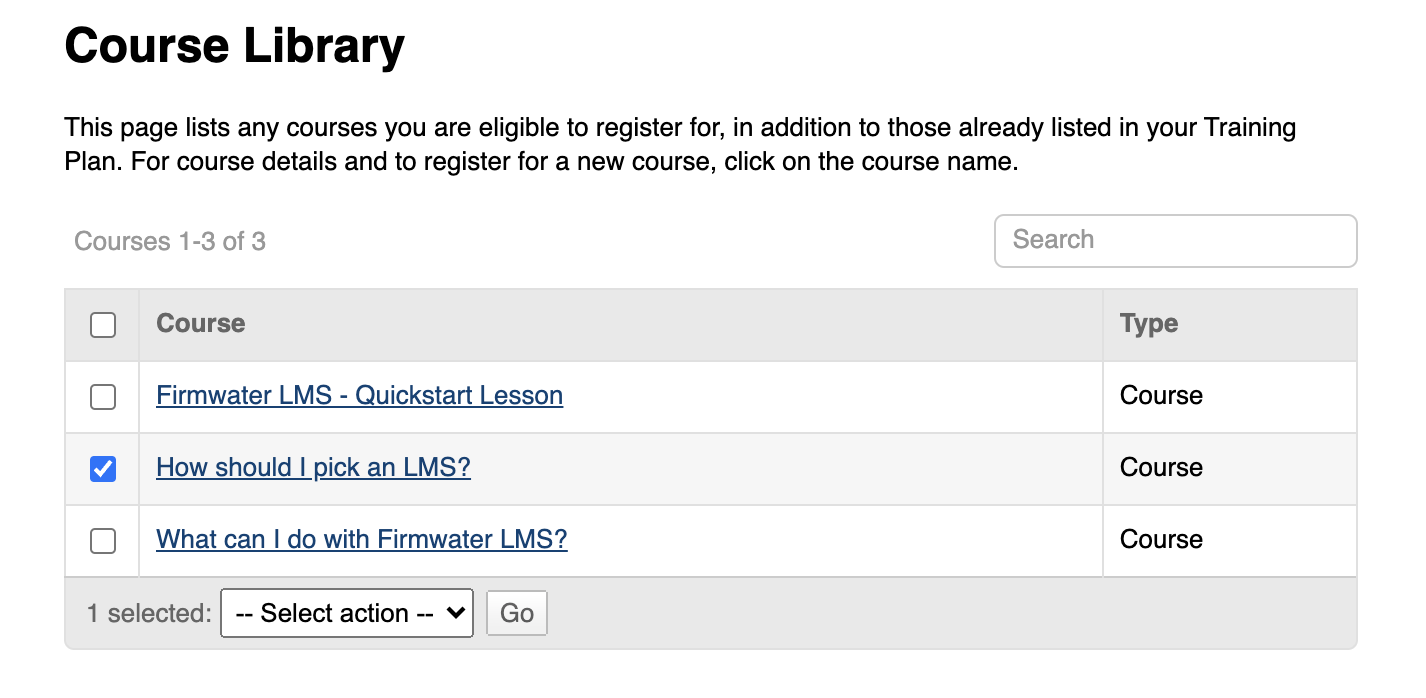
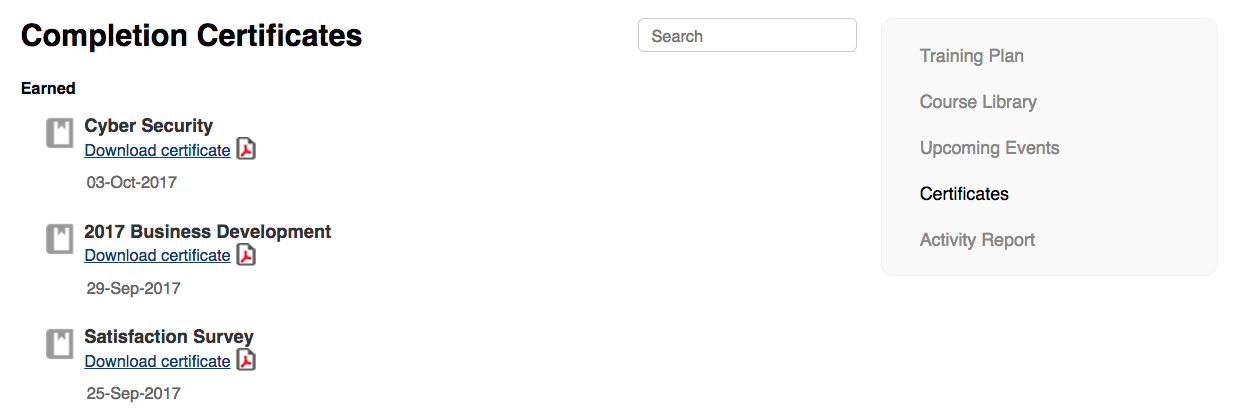
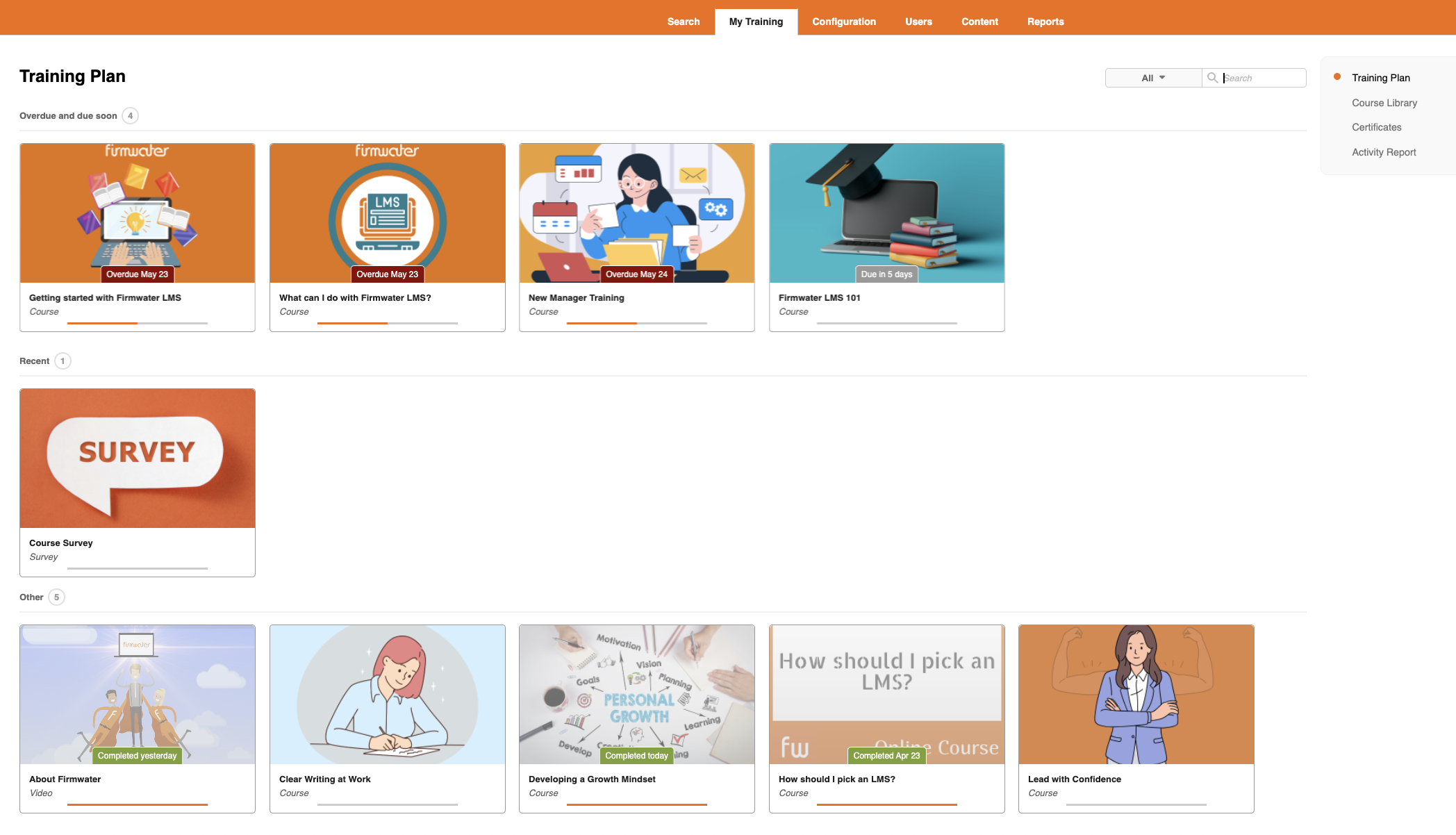
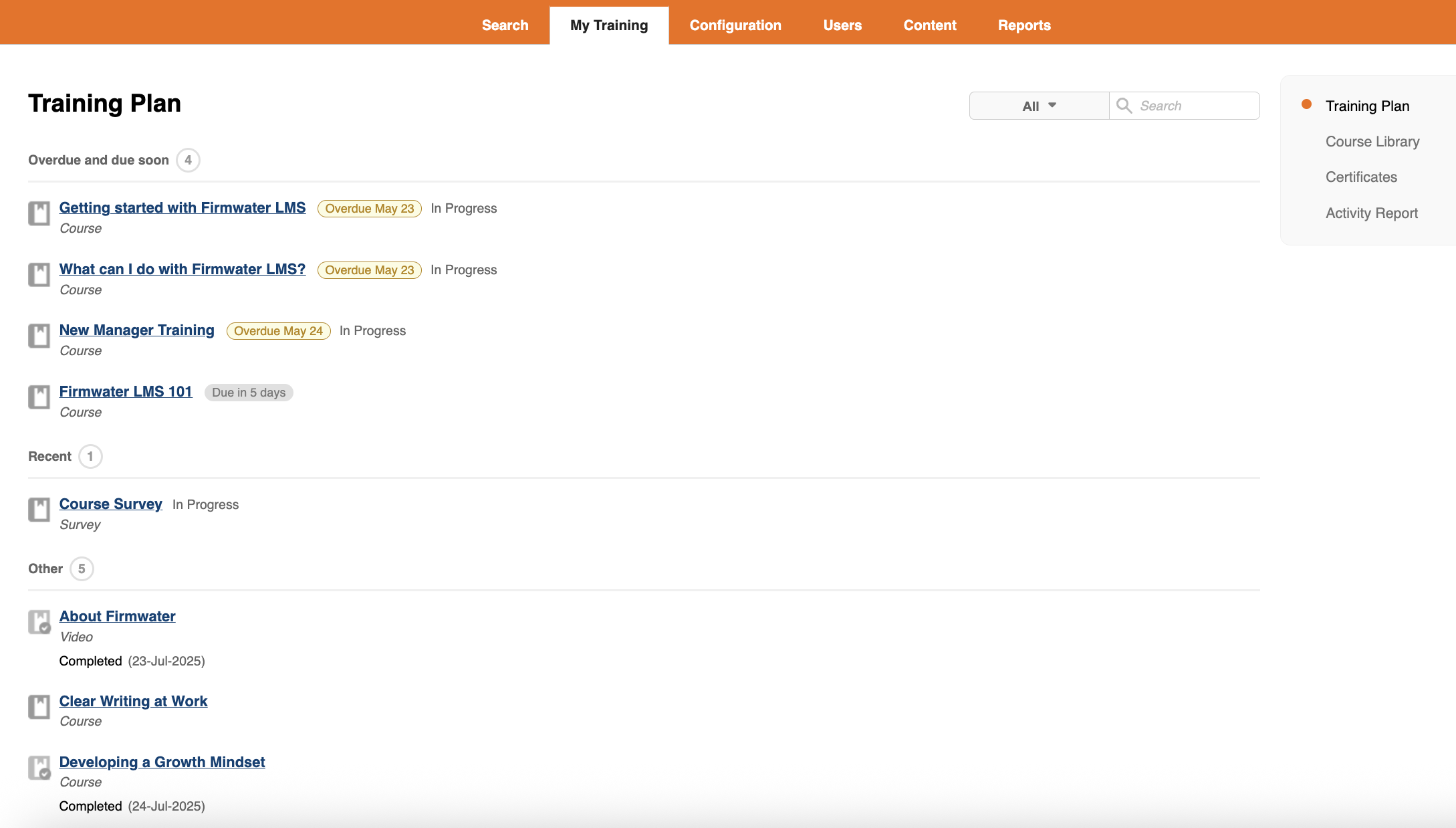
Courses in your Training Plan may be displayed either as cards with images or as a list, depending on how your administrator has configured the LMS:
Cards With Images
List
Search
You can use the search bar to find specific courses. You can search by: Course Title, Due Date or Status. You can also use the dropdown filter next to the search bar to display course by status (Not Completed, Completed, Overdue).
Groupings
Your courses may be grouped by due date and recent activity.
Overdue and due soon: Contains overdue courses and courses due within 7 days.
Recent: Courses with at least one item accessed within the last 30 days that are still in progress.
Courses that don’t fit into the above categories are grouped under ‘Other.’
Active Courses
Courses are shown in order of priority (overdue, due date, end date, assigned/registered)
- Launch a course by clicking on its title or image – you may see one launch-able item or several within the course
- Click exit on the top right hand corner to leave a course
- Courses that have been launched but not completed show an ‘in progress’ status (when courses are displayed as a list) or as a partially-filled progress bar (when courses are displayed as cards)
Completed Courses
- Once a course is completed, it will be marked as ‘Completed’ with the completion date
- Click on completed courses to view its contents
- Launch the course (if attempt limits have not yet been reached)
- Review results by clicking on Attempts history
Launching a course
From the Training Plan page, click the title or image of the course you want to explore. The course opens, showing:
- more detailed information about the course
- the contents of the course (with the status of each item)
- the actions available for each of the items.
Course actions
Launch:
Click ‘launch’ to open your training course. The training may open in a new window. Use the navigation buttons within the LMS rather then your browser navigation.
Resume:
Click ‘resume’ to launch a course that had previously been started.
Attempts history:
You can view details about your previous attempts. See more about attempts and your attempts history below.
Unavailable modules
You may see course items that are greyed out. Hover over the question mark icon to see what course content has to be completed first for the item to become available.
Note
Items that are greyed out are not currently available but may become available. For example, an item might not be available once you have attempted it once, or its availability might depend on the results of a pre-test or on the completion of other modules (prerequisites).
Your Attempts and Your Attempts History
Each time you launch or complete an item within a course, this is considered an “attempt”. Some course items may restrict you to a specific number of attempts.
Note
Resuming an incomplete course, which may or may not be possible, is not considered an additional attempt.
Once you have made an attempt at an item, an Attempts history link may appear below the item. Click View all # completed courses > click item Title > Attempts history).
Click the link to see the details of all your attempts, including their results, if appropriate.
Note
For an item that limits the number of attempts, once you have reached that limit you can no longer launch the item. If you need to extend the number of attempts, contact technical support.